Chat with us, powered by LiveChat

UTM for Google Ads

Dynamic UTM for Google Ads

Google Ads Dynamic UTM Setup in Under a Minute

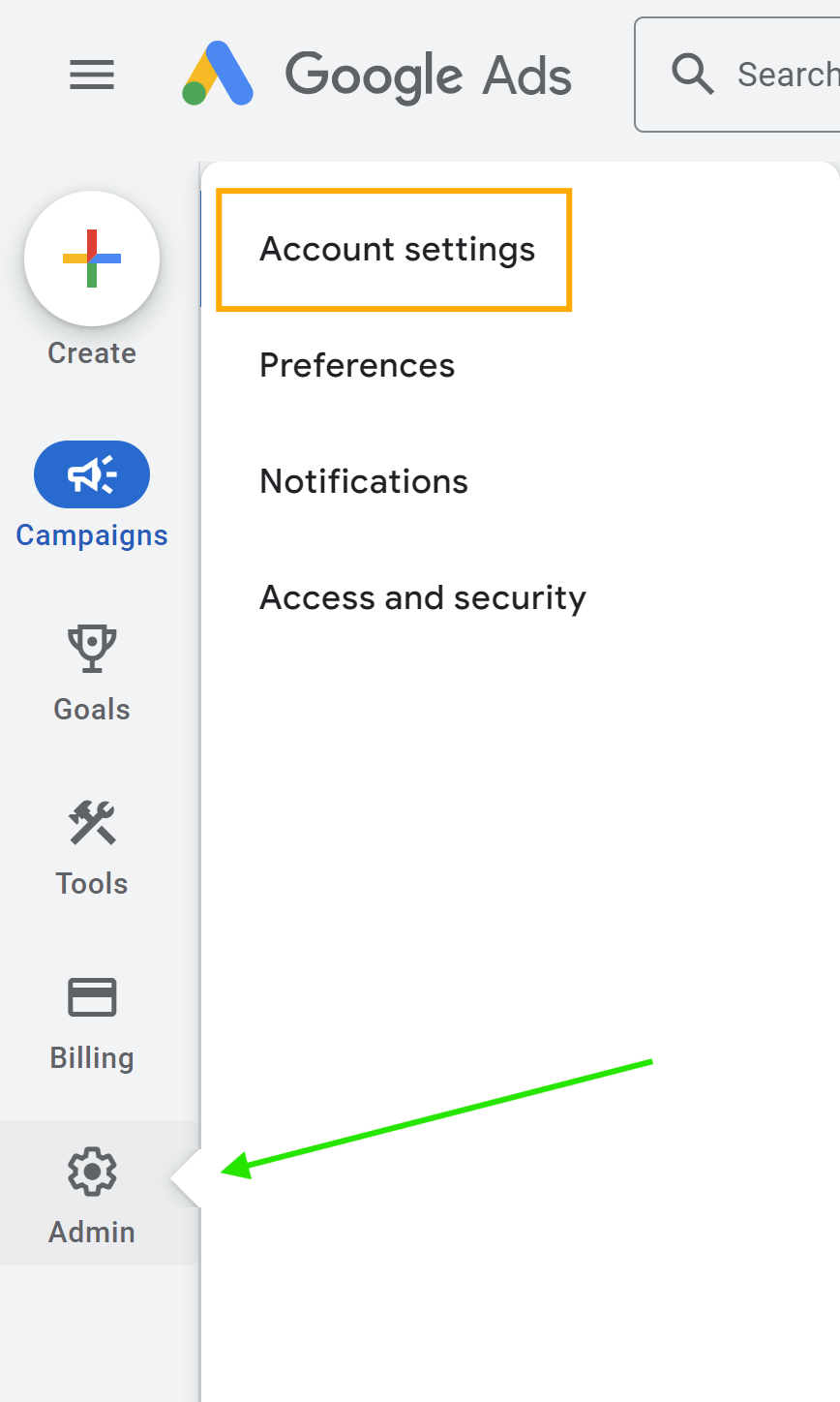
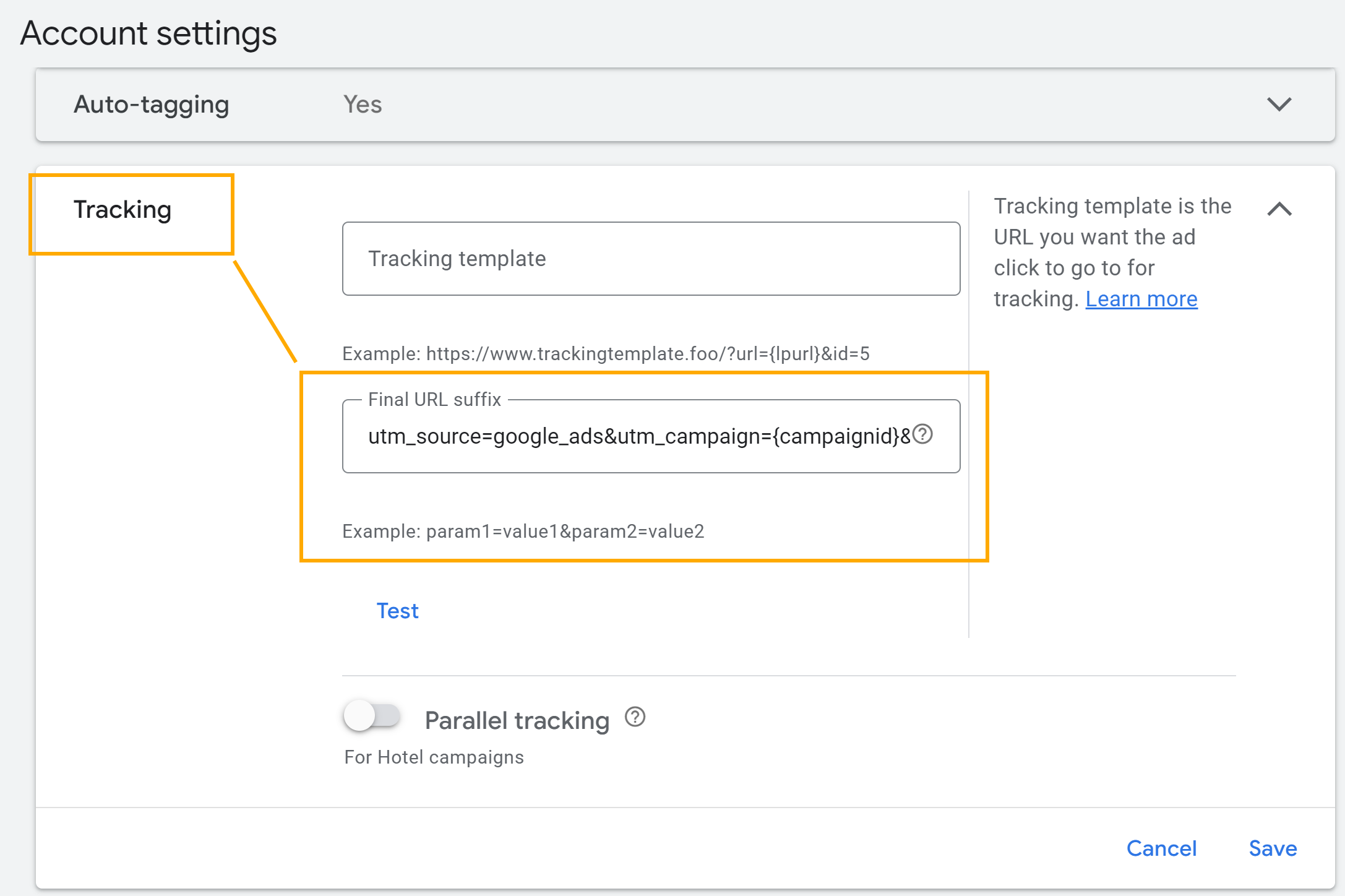
  1. Navigate to the URL Options section within your Google Ads account settings.
  2. Locate the “URL Suffix” field and insert the following template:
    utm_source=google_ads&utm_campaign={campaignid}&AgId={adgroupid}&utm_term={keyword}&utm_content={creative}&device={device}&GeoLoc={loc_physical_ms}&content_site={placement}&utm_medium=cpc
  3. Save your changes and let the dynamic UTM template work its magic.
Google Ads_menu - Account settings
Google Ads - Account settings

Recommended:For faster insights and seamless collaboration With your marketing team. Explore customization options

Maximize Your Advertising ROI with Leader and Dynamic UTM

Unleash the power of Dynamic UTMs to gain a comprehensive understanding of your Google Ads campaigns. Track revenue generated from campaigns, ad groups, and even individual keywords, all within the intuitive Leader platform. Witness the complete customer journey, from click on your ad to business outcome, and optimize your campaigns for maximum ROI.

Unveiling the Power of Dynamic UTM Templates

Let’s delve into the specific data fields that dynamic UTM templates can capture:

  • utm_source: Indicates the source of the traffic, in this case, “google_ads”
  • utm_campaign: Identifies the specific Google Ads campaign
  • AgId: Pinpoints the unique identifier for the ad group
  • utm_term: Captures the exact keyword that triggered the ad
  • utm_content: Identifies the specific creative element that was displayed
  • device: Indicates the device used to view the ad (desktop, mobile, tablet)
  • GeoLoc: Captures the user’s geographical location
  • content_site: Identifies the website where the ad was displayed. In the Google Display Network (GDN), this field indicates the website or app where the ad was shown.
  • utm_medium: Indicates the advertising medium (in this case, “cpc” for cost-per-click)

With dynamic UTM templates in place, you’ll gain a comprehensive understanding of how your Google Ads campaigns are performing, enabling you to optimize your strategies and maximize your return on investment.

Custom UTM – More options

Dynamic UTM templates provide you with the campaign ID and ad group ID as numerical values. Alternatively, you can replace the dynamic campaign ID with the campaign name, and place the UTM template only at the campaign level under “URL options” in the campaign settings.
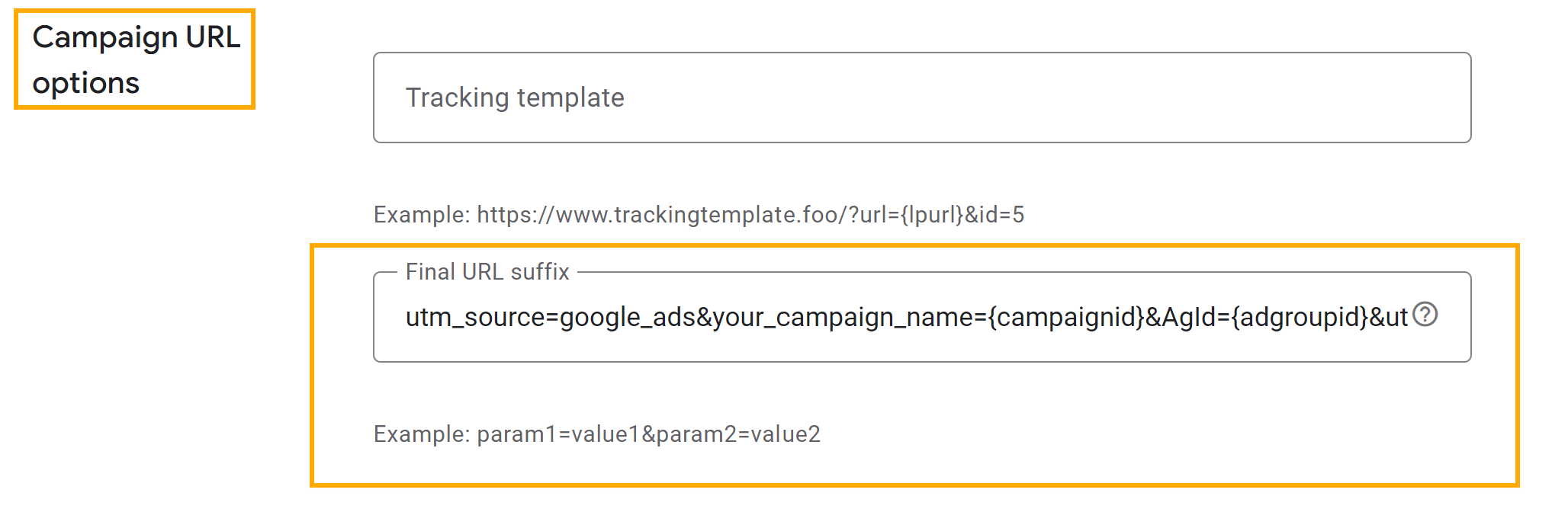
Final url suffix Google Ads campaign settings

If you also want to display the ad group name instead of the numerical ad group ID, simply replace the dynamic ad group ID with the ad group name. In this case, place the UTM template only at the ad group level under “URL options” in the ad group settings.
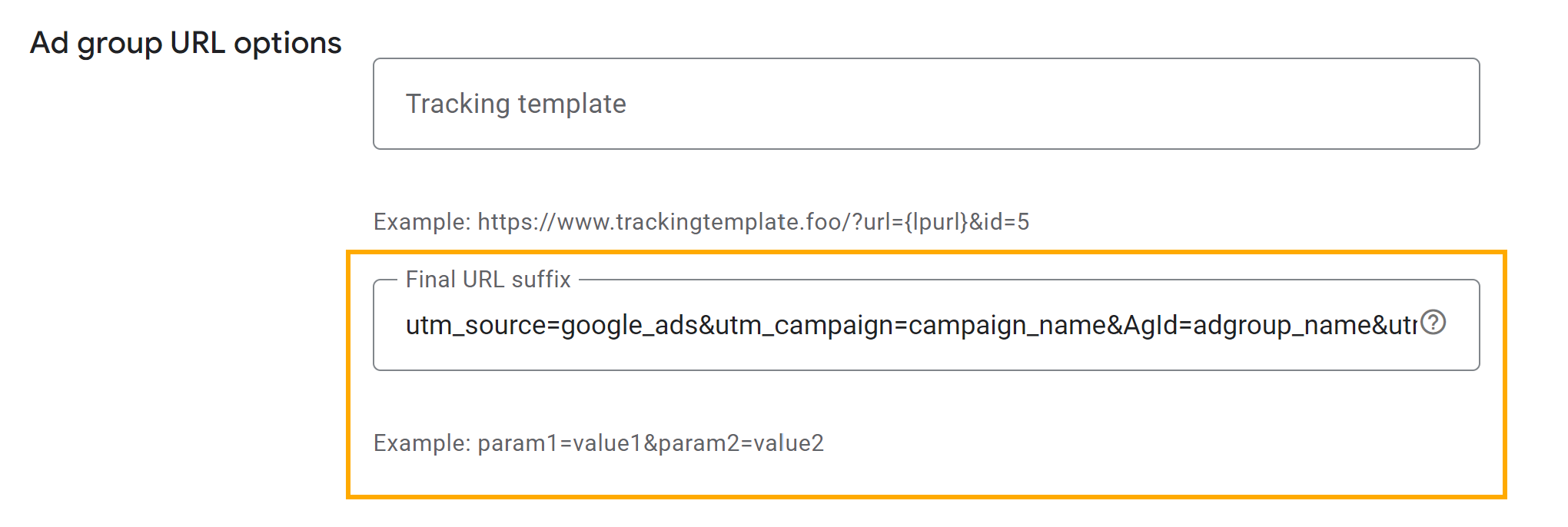
Final url suffix Google Ads ad group settings

For accurate data tracking, choose only one level (account, campaign, or ad group) to place UTM parameters. Avoid placing UTM parameters at multiple levels.

Leader 2026 © | Platform for campaign management, lead management and resources for better marketing
Accessibility