Make® Guide
Add leads from a google sheet to your Leader campaign

Add leads from a google sheet to your Leader campaign
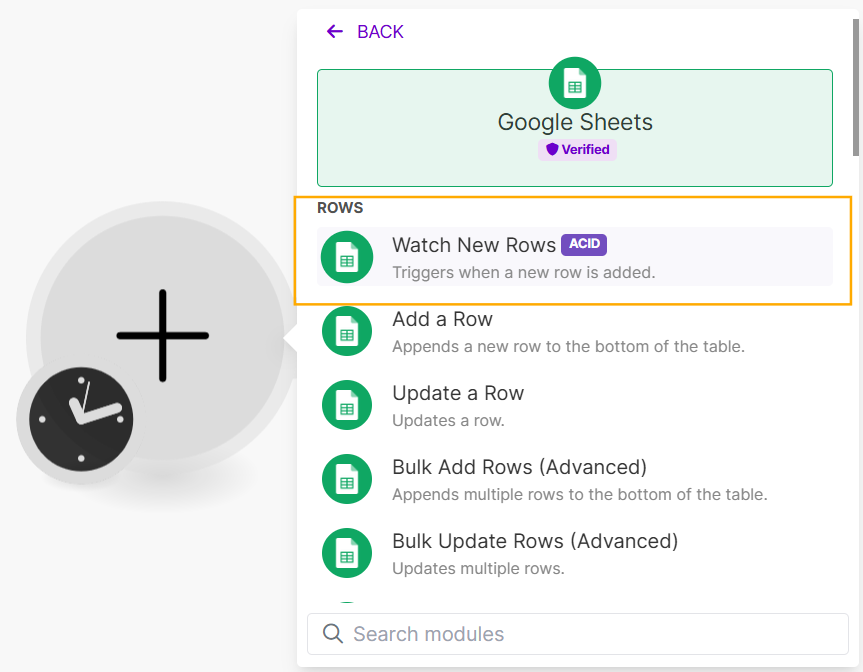
Select the “Google Sheets” module and choose the action Watch New Rows.
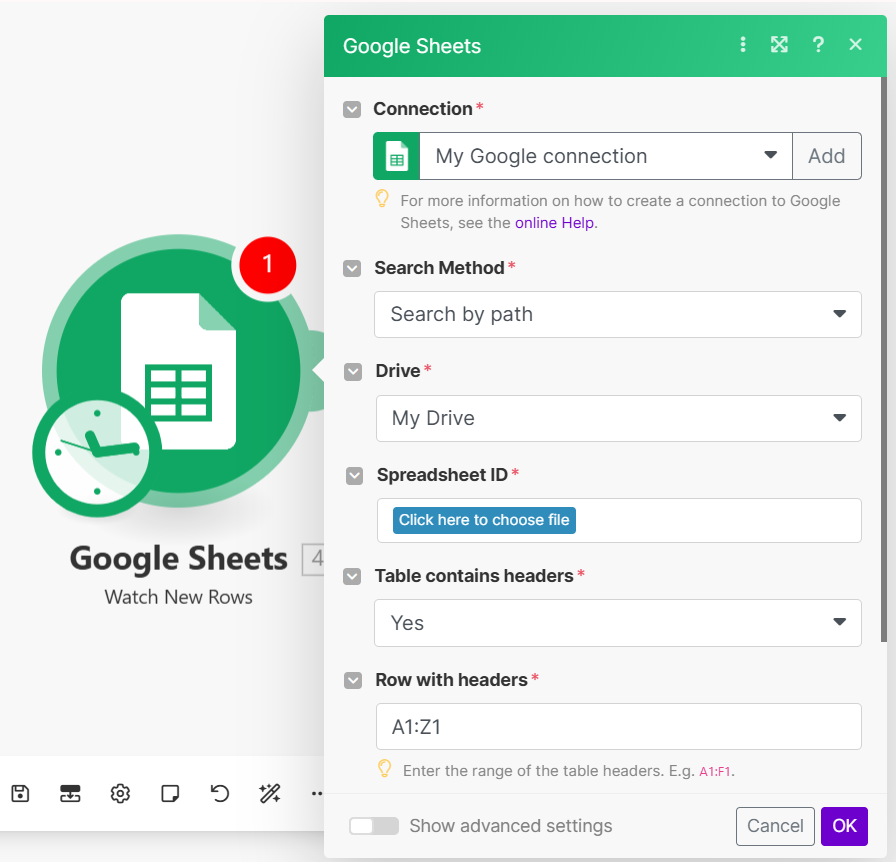
Set up your Google Sheets connection, configure the search method, and locate the relevant sheet.
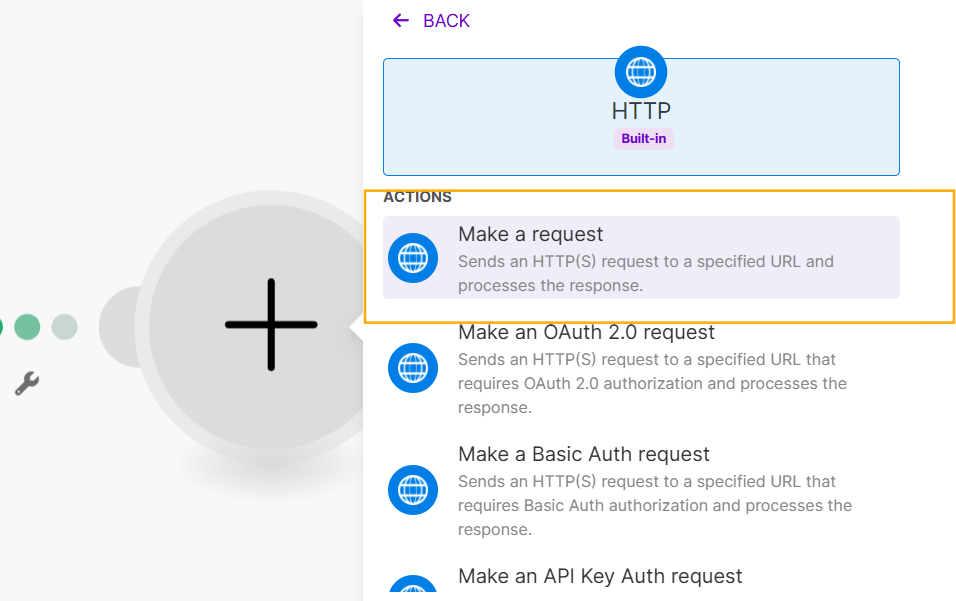
Add the HTTP module and choose Make a Request.
Configure the HTTP request:
URL: Enter the following link: https://www.leader.online/leader/post/post.php
Method: Select POST.
Body Type: Choose Multipart/form-data.
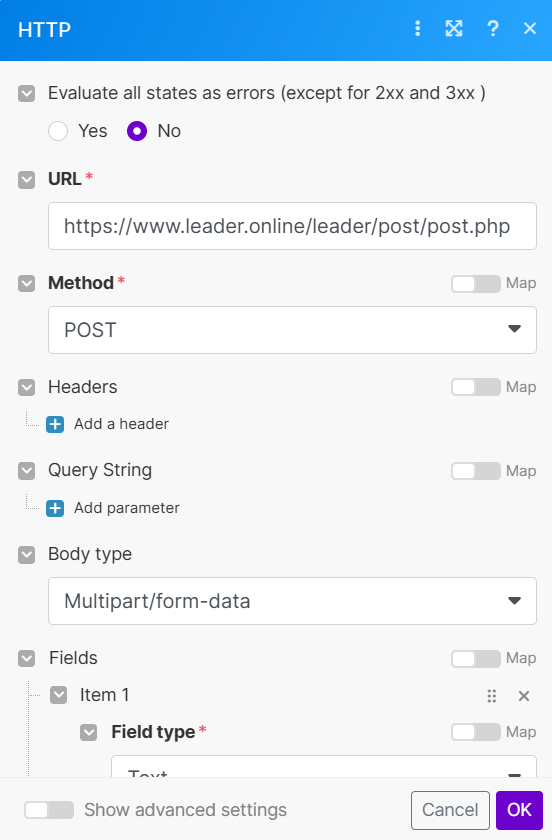
Under the Fields section, add the required identification fields (Leader’s campaign number and password):
campaignid– Enter the campaign number as the value.
campaignpass – Enter the campaign password as the value.
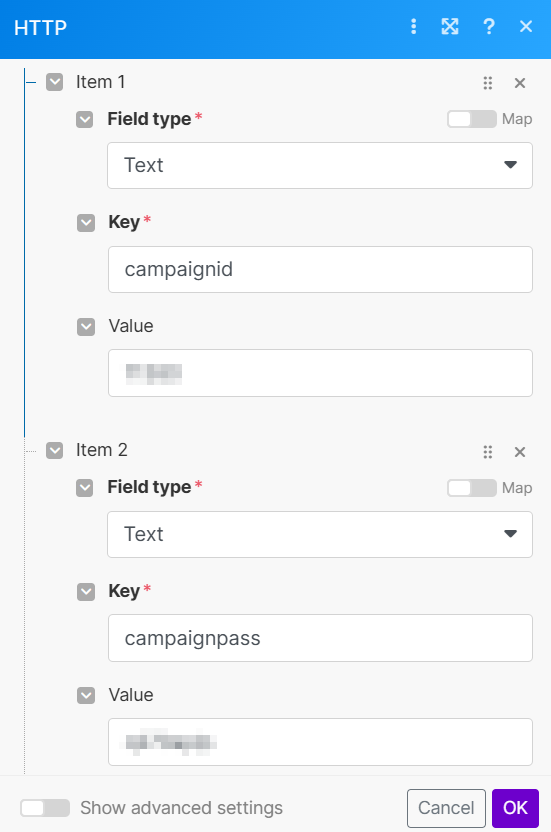
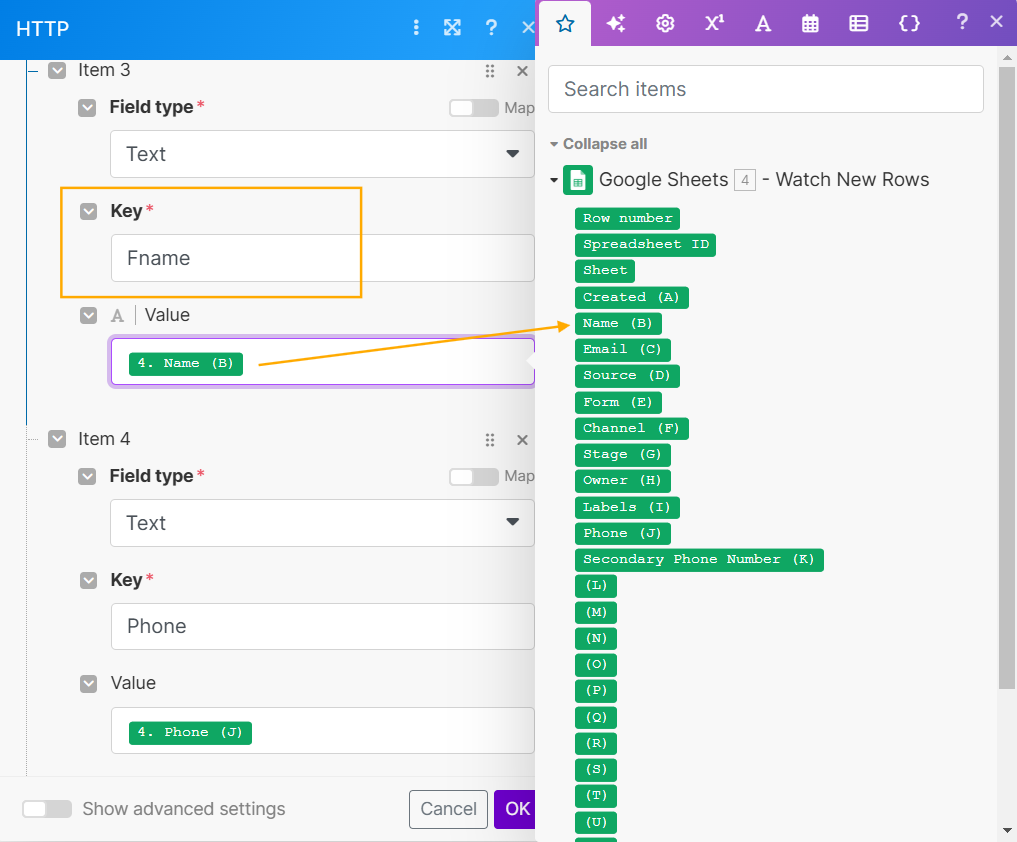
Add the rest of the data according to the values established in the Leader campaign. Here’s an example of basic fields:
Name: Fname
Phone: Phone
Mail: Email
If for example you do not have an email in the sheet , there is no need to add it at this point.
Select the appropriate values from the form and complete them to “value”.
If there are other fields that appear in your sheet, such as: city, age, etc.
you can add them at this point. (If the fields already exist in Leader, take the field name and use it here. If they do not exist in Leader, they must be created to get a field name.)
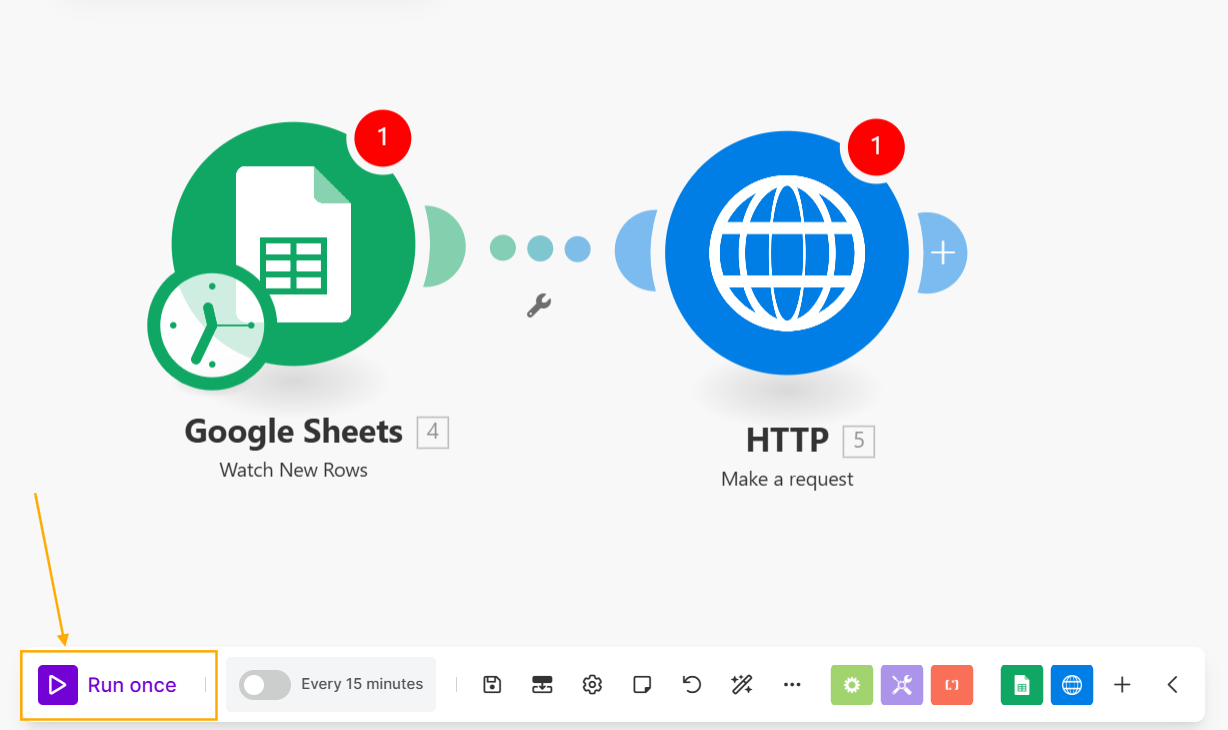
After setting up both modules, click Run Once to start the process.